Start with your seated position
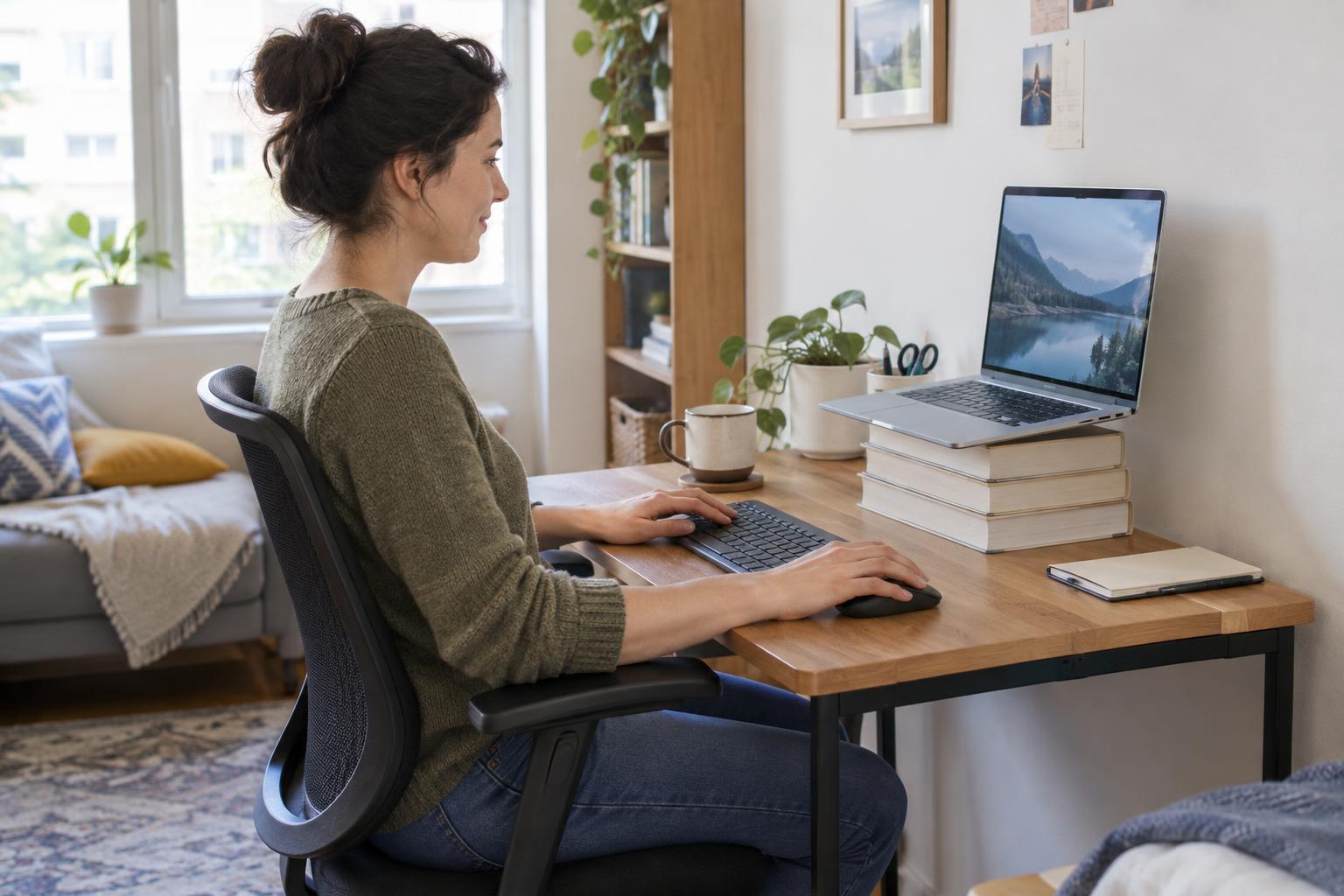
Before moving the keyboard, sit where you normally work. Place your feet on the floor or on a stable footrest, let your shoulders relax and bring your elbows close to your sides. The keyboard is a useful height when you can reach it without lifting your shoulders, stretching your arms forward or bending your wrists sharply upward. Your elbows may be roughly level with the keys, but comfort matters more than matching an exact angle.
If your desk is fixed, adjust the chair first. Raising the chair may bring your hands into a better position, but check that your feet still have support. A firm footrest can help if they no longer reach the floor comfortably. If the chair is already at a good height and the desk surface is too high, a lower keyboard surface may be worth considering. Avoid balancing equipment on a wobbly shelf or tray just to achieve a particular height.
Place the keyboard where your arms can rest
Move the keyboard close enough that you do not have to lean toward it. On a shallow desk, this may mean moving notebooks, speakers or decorative items elsewhere during work hours. Leave enough space in front of the keys for your hands to approach them naturally, without pressing your wrists against a sharp desk edge. If the edge feels uncomfortable, try shifting the keyboard slightly or using a simple desk mat.
Keep the keyboard reasonably flat to start. Raising its back feet tilts the keys toward you and may make some people bend their wrists more. Try both positions and notice whether your hands can stay fairly straight in line with your forearms. You do not need to hold them perfectly still: changing position and taking brief pauses can be more practical than trying to maintain one rigid posture all day.
Give the mouse its own reachable space
Place the mouse beside the keyboard at about the same height, rather than on a higher shelf or a low side table. You should be able to use it with your upper arm near your body. If the mouse keeps drifting outward, clear a small working area beside the keyboard or try a narrower keyboard. A compact keyboard without a number pad can bring the mouse closer, though it may not suit someone who uses that pad frequently.
A large mouse mat is optional; a clear, even surface is the priority. Adjust pointer speed if you find yourself making long movements across a tiny desk. Try to move your hand and forearm together when reaching across the screen, and use keyboard shortcuts for frequent actions if you find them convenient. These small changes can reduce the amount of space you need without requiring a new desk.
Separate laptop screen height from typing height
A laptop creates a common compromise: when its keyboard is at a comfortable height, its screen may feel low; when the screen is raised, the built-in keyboard can be awkward to reach. For longer work sessions, an external keyboard and mouse let you place the laptop screen higher while keeping your hands at desk height. A stable laptop stand is useful, but a secure stack of sturdy items may work if it does not block ventilation or leave the computer at risk of slipping.
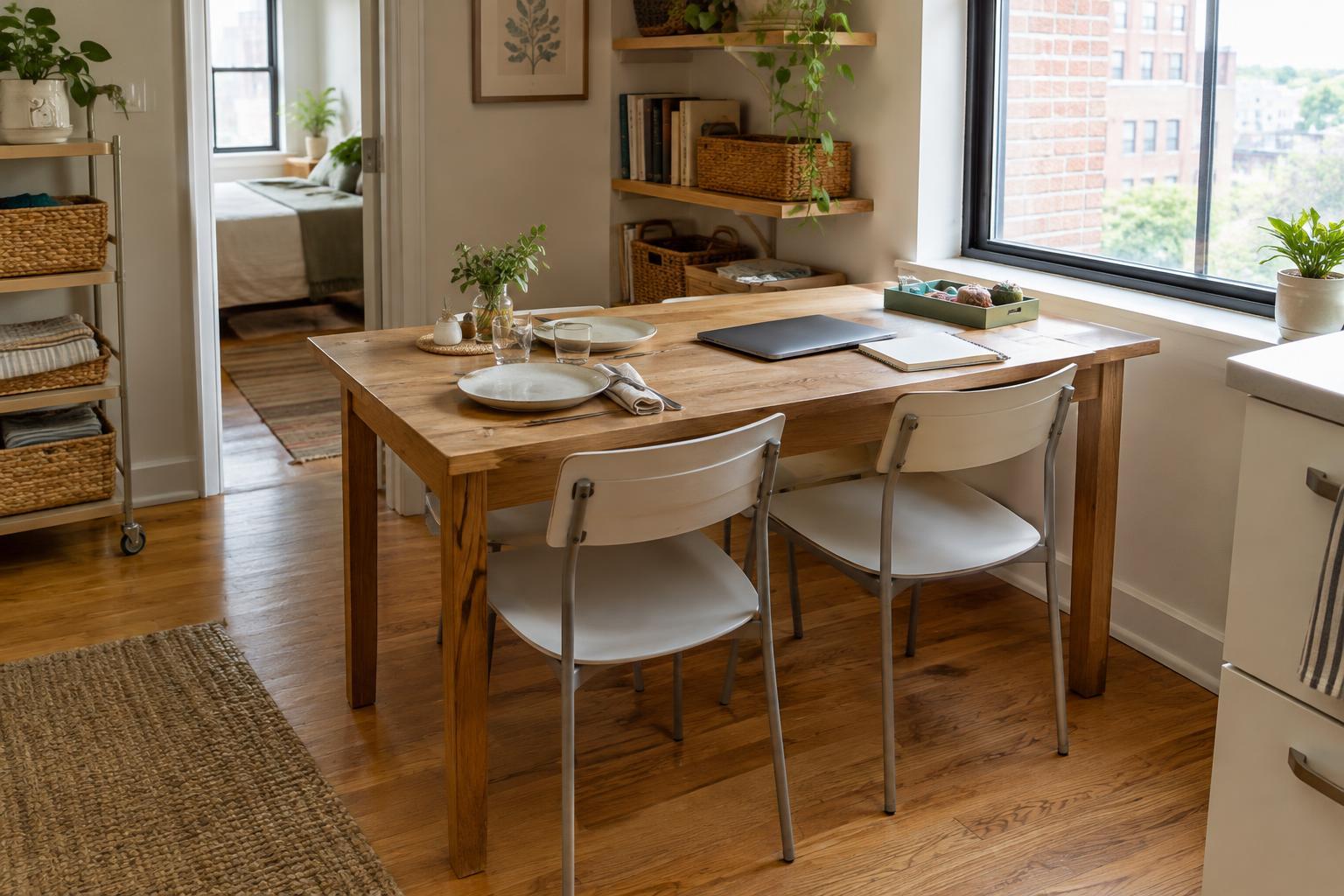
On a very small surface, check the full layout before adding accessories. You might put the laptop at the back of the desk, with a compact keyboard in front and the mouse beside it. If you work at a dining table, choose equipment you can gather into one box or tray afterward. A setup that is easy to put away is more likely to remain workable in a multipurpose room.
Test the setup during a normal task
Type and use the mouse for a while rather than judging the arrangement from a single seated pose. Notice whether you repeatedly shrug your shoulders, reach for the mouse, lean forward or rest heavily on the desk edge. Change one thing at a time—chair height, keyboard position or mouse location—so you can tell what helps. A comfortable arrangement should support your usual tasks, not just look tidy.
Start with free adjustments and only consider buying an accessory when you know what problem it needs to solve. A footrest addresses unsupported feet; a smaller keyboard creates mouse space; an external keyboard makes a raised laptop easier to use. If discomfort persists or worsens, a workspace adjustment may not be the whole answer, and it is sensible to seek advice from an appropriate qualified professional.