Start with the place where you actually work
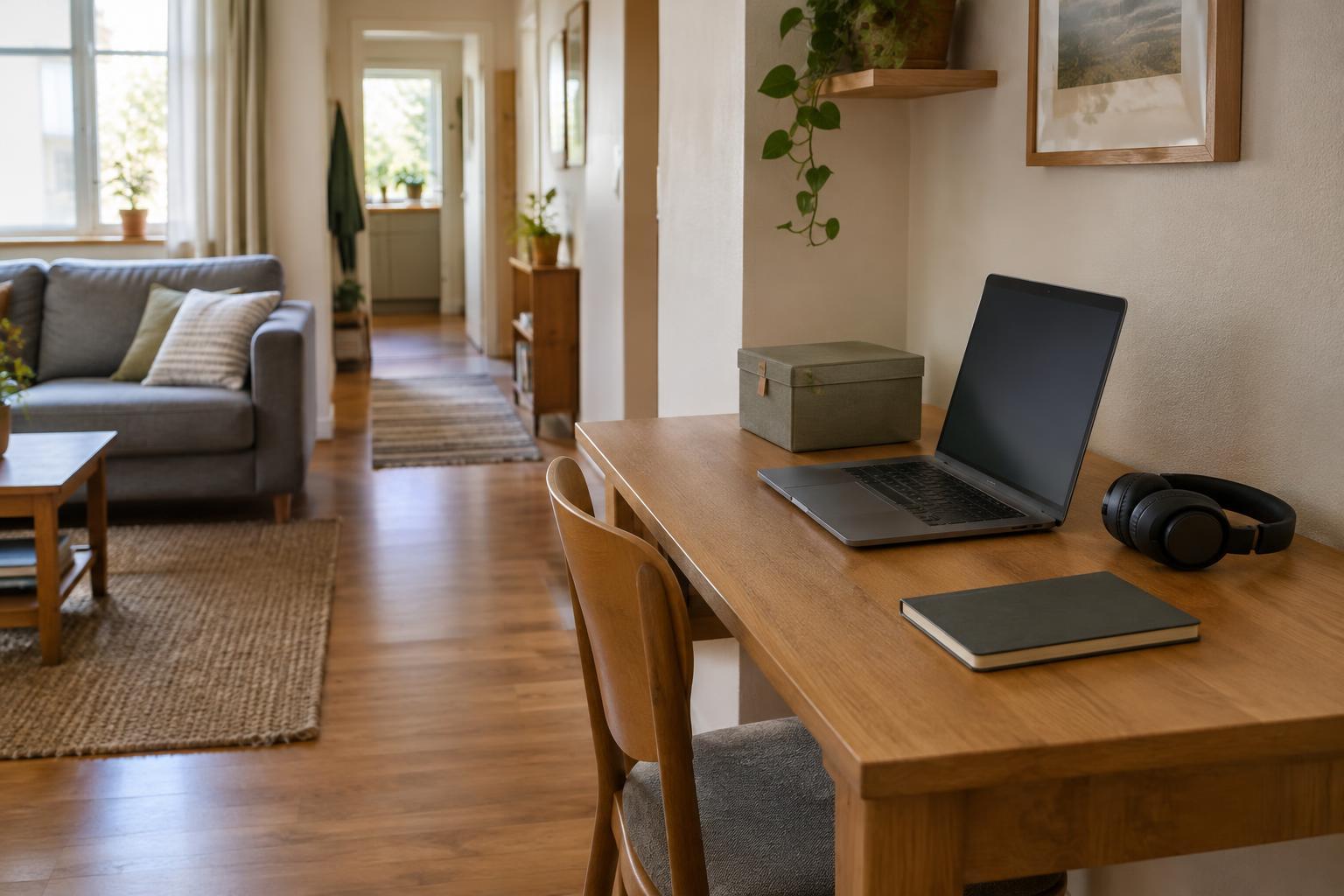
A home connection that works well beside the router may struggle at a desk behind two walls. In a compact home, the work spot might also change during the day: a table for calls, a sofa for reading, or a fold-down desk in a spare corner. Test each place you regularly use rather than judging coverage from the room as a whole.
First, note what goes wrong. Do video calls freeze, do pages load slowly, or does the connection disappear altogether? Also note whether the trouble happens at a particular spot or time. This small record helps you avoid changing equipment when the real issue is one busy device, a temporary service interruption, or a call that is demanding more from the connection.
Run a simple comparison test
Use the same laptop or phone for each check. At your work spot, connect to Wi-Fi and load a few familiar pages or make a short test call if you can. If you use a speed test, run it more than once and treat the results as a comparison, not a promise of how every call will perform. Repeat the checks near the router using the same device. Testing at similar times makes the comparison more useful.
Pay attention to consistency as well as speed. A connection that works briefly and then drops may be more disruptive than one that is modestly slower but steady. If the signal looks strong at your desk yet every device is slow, the Wi-Fi coverage may not be the main problem. If possible, compare with a device connected to the router by Ethernet cable. A wired connection that also struggles points toward the internet service, router, or a wider network issue rather than the distance to your desk.
For a work spot that moves, make a quick map: mark the places where calls are stable, where pages hesitate, and where devices disconnect. You do not need a specialist app to make this useful. A few repeatable observations are better than a single reading taken on an unusually quiet afternoon.
Try no-cost changes before buying equipment
Router position can matter. If practical, move it into a more open position rather than leaving it on the floor, inside a cabinet, or tucked behind large objects. Place it away from obvious obstructions and give it room for ventilation. In a multipurpose room, even shifting a desk to the other side of a bookcase may be easier than moving the router.
If your router offers separate Wi-Fi bands, test each one at the work spot. The 5 GHz band may perform well closer to the router, while 2.4 GHz may reach a more distant corner more reliably; your home layout and nearby networks can change the result. Keep the band that works more consistently for your actual tasks. Check that the laptop is not repeatedly switching to a weaker saved network, and restart the router and device if the problem appears sudden.
During an important call, pause large downloads or backups on other devices if you control them. This will not fix poor coverage, but it can reduce competition for the connection. Make one change at a time, then repeat your desk test so you can tell what helped.
Choose the smallest upgrade that solves the problem
If rearranging the space is not enough, consider whether a cable is practical. An Ethernet cable from the router to a stationary work desk can provide a dependable connection without adding another wireless device. Plan the route carefully: avoid loose cable across a walkway, and check whether your computer needs an adapter.
For a desk that cannot be wired, a mesh system or a suitable access point may improve coverage, but placement still matters. A wireless mesh unit needs a good connection back to the main router; putting it in the dead zone may leave it with too little signal to share. Test a position between the router and work spot instead. Before purchasing, check compatibility with your existing equipment and the return policy. An inexpensive change to the room layout is a better solution if it already makes calls reliable.
Make reliability part of your work setup
Once you find a dependable spot, test it under normal conditions: with the door in its usual position and other household devices in use. Keep the router accessible for troubleshooting, and record any settings you change so you can reverse an experiment that makes things worse. Use a protected Wi-Fi network and keep the router’s software updated through its normal settings.
If connection trouble continues in every room and on multiple devices, contact your internet provider or check the router’s support information before buying more coverage equipment. The goal is not the highest test result in the house. It is a work spot where the tasks you rely on—especially calls and file uploads—work consistently.