Clear the space before you reach for cleaner
A laptop often sits where other jobs happen: on a dining table, beside craft supplies or at a desk that also holds mail and mugs. Before wiping the surface, move drinks, loose papers and small objects away from the computer. Shut the laptop down, unplug it and let it cool. If you can, put it on a clean, dry surface away from the area you are about to spray or scrub.
Keep room-cleaning products separate from anything you use on the device. Spray a tabletop cleaner onto a cloth rather than toward the laptop, and wait until the table is dry before putting the computer back. This small change helps prevent stray droplets from reaching the keyboard, ports or screen.
Treat the screen as a delicate surface
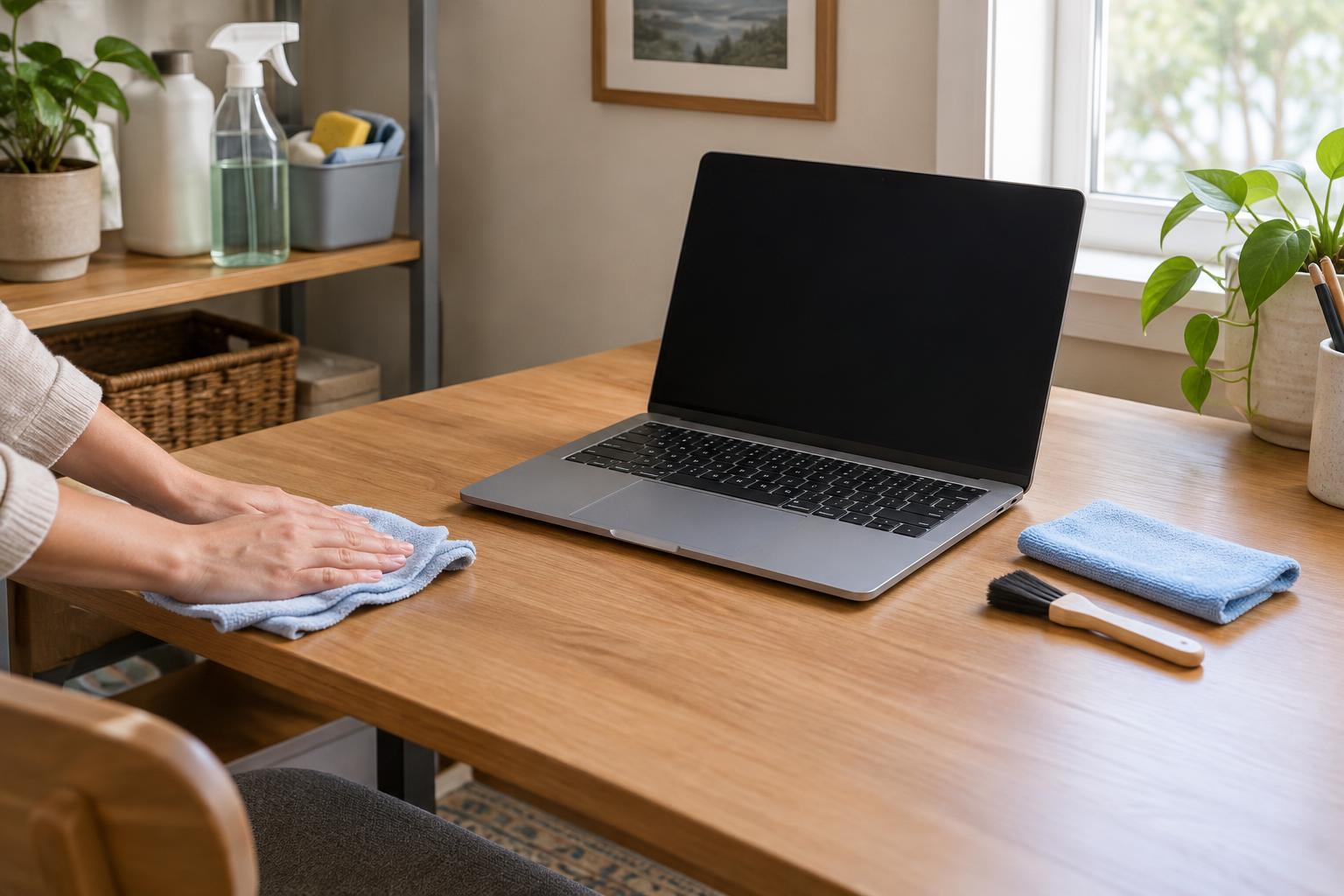
For ordinary dust and fingerprints, start with a clean, soft microfiber cloth. Wipe gently, without pressing hard on the display. If a mark remains, check the laptop maker’s care instructions before using any liquid. Where the instructions allow it, lightly dampen the cloth with water or a screen cleaner they recommend; the cloth should not be wet enough to drip. Never spray liquid directly onto the screen.
Avoid paper towels, rough sponges and general-purpose cleaning sprays. Some cleaners may affect a screen’s coating, and abrasive materials can leave fine scratches. Fold the cloth to a fresh side if it picks up grit. Give the screen time to dry fully before closing the lid, so moisture is not trapped against the keyboard.
Remove crumbs without pushing them deeper
The keyboard benefits most from prevention. Keep snacks to one side, close containers of pens or craft materials, and wash or dry your hands before typing when you have been cleaning. For a routine tidy, use a dry, soft brush or microfiber cloth to lift dust from the key tops and the spaces around them. Work gently so you do not pry at the keys.
If crumbs are caught between keys, follow the manufacturer’s guidance for your model before using compressed air or another tool. Designs vary, and a forceful blast can move debris somewhere harder to reach. Do not pour cleaner onto the keys or run a damp cloth into their gaps. For sticky residue that does not wipe away easily, consult the device’s care instructions rather than adding more liquid.
Build protection into the room-cleaning routine
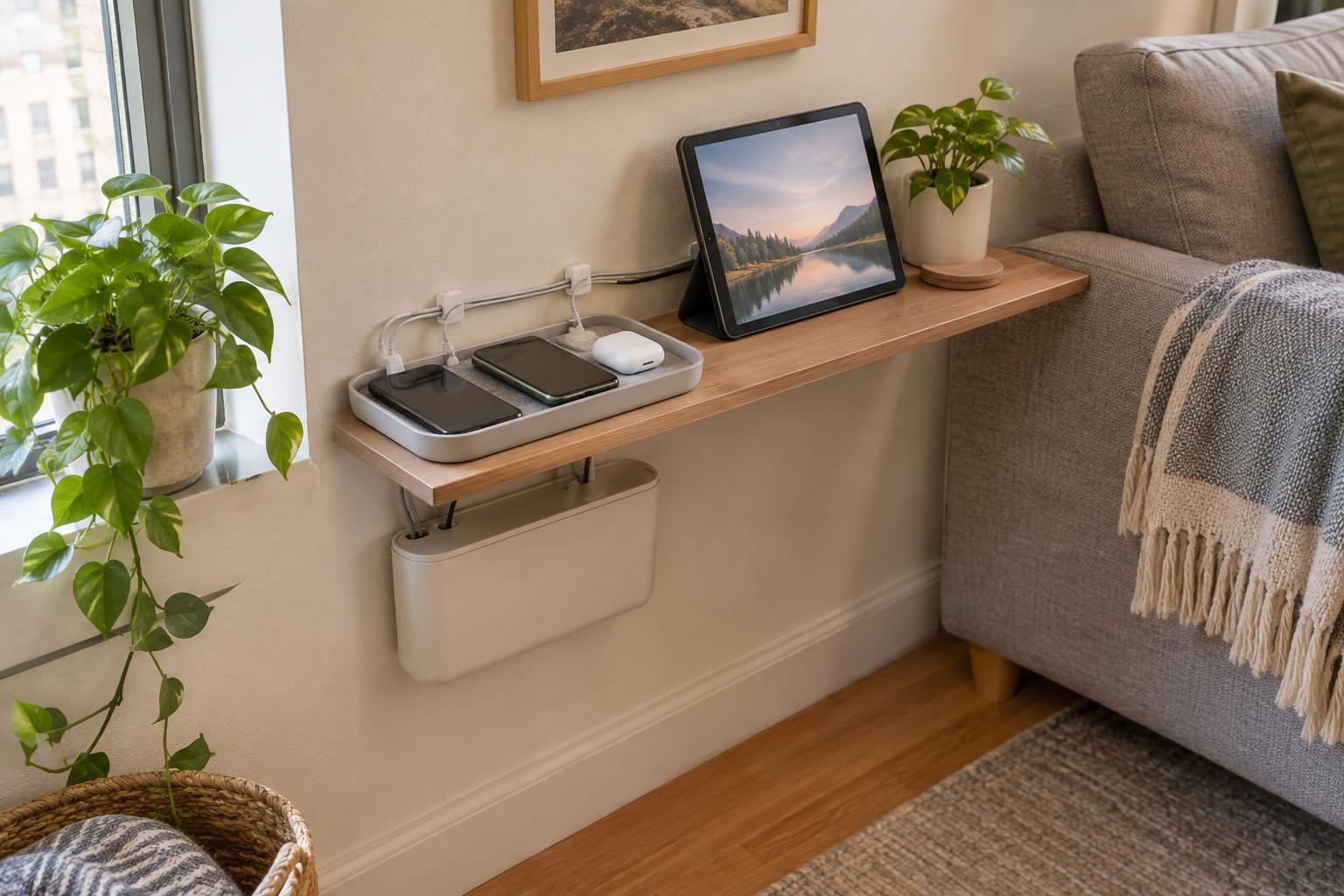
In a compact room, cleaning is easier when the laptop has a temporary landing spot. A shelf, clear tray or dry section of the table can hold it while you wipe nearby surfaces. Keep its charging cable out of the path of a wet cloth or mop. If you use a cloth for both furniture and electronics, set aside a separate, clean microfiber cloth for the screen so furniture polish or grit does not transfer to it.
A simple order of work is to put the laptop aside, clear clutter, dust shelves and the desk, clean the work surface, then tend to the powered-off laptop with device-appropriate materials. Return it only when your hands, the surface and the device are dry. This sequence takes little extra time and reduces the chance of accidentally spraying it while tackling the room.
Know when routine cleaning is not enough
A spill is different from a smudge. If liquid reaches the laptop, stop using it, disconnect power if you can do so safely, and follow the manufacturer’s spill guidance. Do not switch it on just to see whether it works, and do not rely on a normal surface wipe to deal with liquid that may have entered the case. A repair professional may be needed.
For everyday upkeep, aim for light, regular cleaning rather than waiting for a heavy buildup. A dry wipe of the screen and key tops, plus a clear boundary between household sprays and the computer, is usually a more manageable habit than a complicated deep clean. The goal is a usable work area and a laptop that stays out of harm’s way while the rest of the room gets cleaned.