Start with the screen you use most
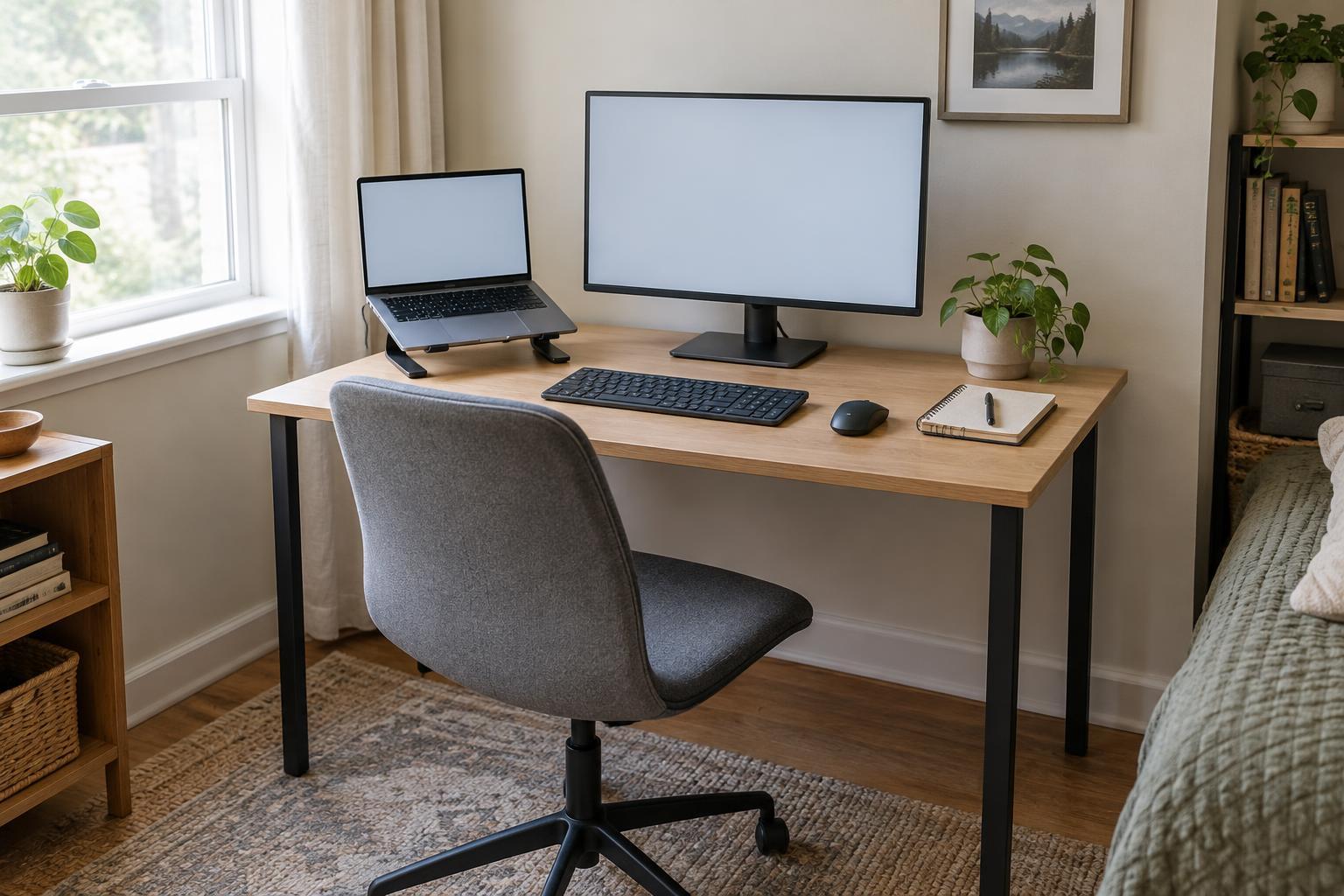
In a compact workspace, it is tempting to place the laptop wherever it fits and squeeze the monitor beside it. A better starting point is the screen you look at most. Sit where you normally work, face forward and place that screen directly in front of you. This helps you avoid spending long stretches with your head turned to one side.
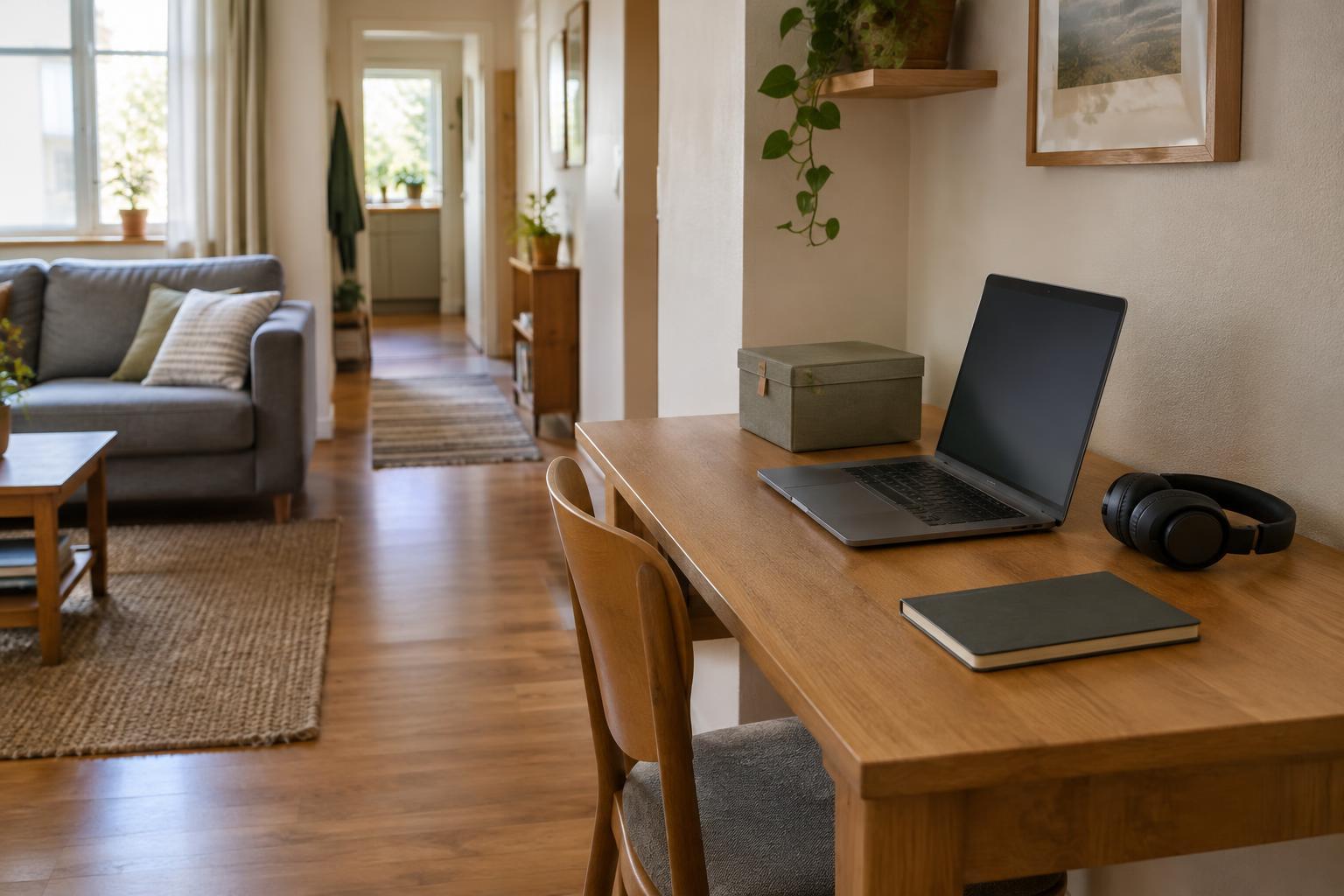
If the external monitor is your main screen, put it in front and move the laptop to the side. Angle the laptop toward you if you use it for messages or reference material. If you regularly work across both screens, bring them close together and arrange them so your most frequent tasks remain near the center. You do not need a perfectly symmetrical setup; the goal is to make your usual viewing position feel natural.
Set the main screen roughly an arm’s length away as a starting point, then adjust it until text is easy to read without leaning forward. A larger monitor may feel comfortable farther away, while a smaller display may need to be closer. Increase text size before sacrificing a comfortable viewing distance.
Raise the laptop without raising your shoulders
A laptop resting flat on a desk often makes you look down at its screen. Raising it can make viewing more comfortable, but it creates another problem if you keep typing on its built-in keyboard: your hands rise with the screen. For regular work, pair a raised laptop with a separate keyboard and mouse or trackpad on the desk.
A laptop stand is one option, but a stable stack of books or a sturdy box can help you test a height before buying anything. Keep the laptop secure, leave its vents unobstructed and make sure it cannot slide when you open it. If desk depth is limited, a compact stand that holds the laptop above part of the desk may free room for your keyboard.
Aim for a position where you can look at the screen without repeatedly tipping your chin down or lifting it up. Your eyes will still move across the display. Make small adjustments while doing real tasks rather than trying to match a single measurement.
Give the keyboard the best part of the desk
Screen height matters less if reaching the keyboard leaves you hunched over. Pull the keyboard close enough that you can type with your elbows near your sides and your shoulders relaxed. Put the mouse beside it at a similar height, not on a distant corner of the desk. Clear the area directly in front of you before finding space for notebooks, chargers and other supplies.
On a narrow table, try a compact keyboard or move occasional-use items into a tray or drawer. If the monitor’s original stand occupies too much surface area, a smaller compatible stand or a properly installed monitor arm may help. Check the monitor’s mounting requirements and the desk’s strength before choosing an arm, especially for a lightweight or folding table.
Your chair and desk also affect the arrangement. If raising the chair makes your feet dangle, a firm footrest may be more useful than another screen accessory. Change one element at a time so you can tell what actually improves the setup.
Check light, viewing habits and breaks
A well-placed monitor can still be awkward to use if a window or lamp reflects across it. Turn the desk or angle the screen to reduce glare while keeping the main display in front of you. Move a task lamp so it lights paper or the keyboard without shining into your eyes or onto the screen. Adjust brightness and text size to suit the room rather than leaning toward a hard-to-read display.
Notice what happens during an ordinary work session. Do you turn toward the laptop every few seconds? Move that window to the main monitor, or bring the laptop closer. Do you lean toward small text? Enlarge it. Even a carefully arranged desk cannot keep you in one position comfortably all day, so make room to change posture and step away from the screen periodically.
Make the arrangement work when work is over
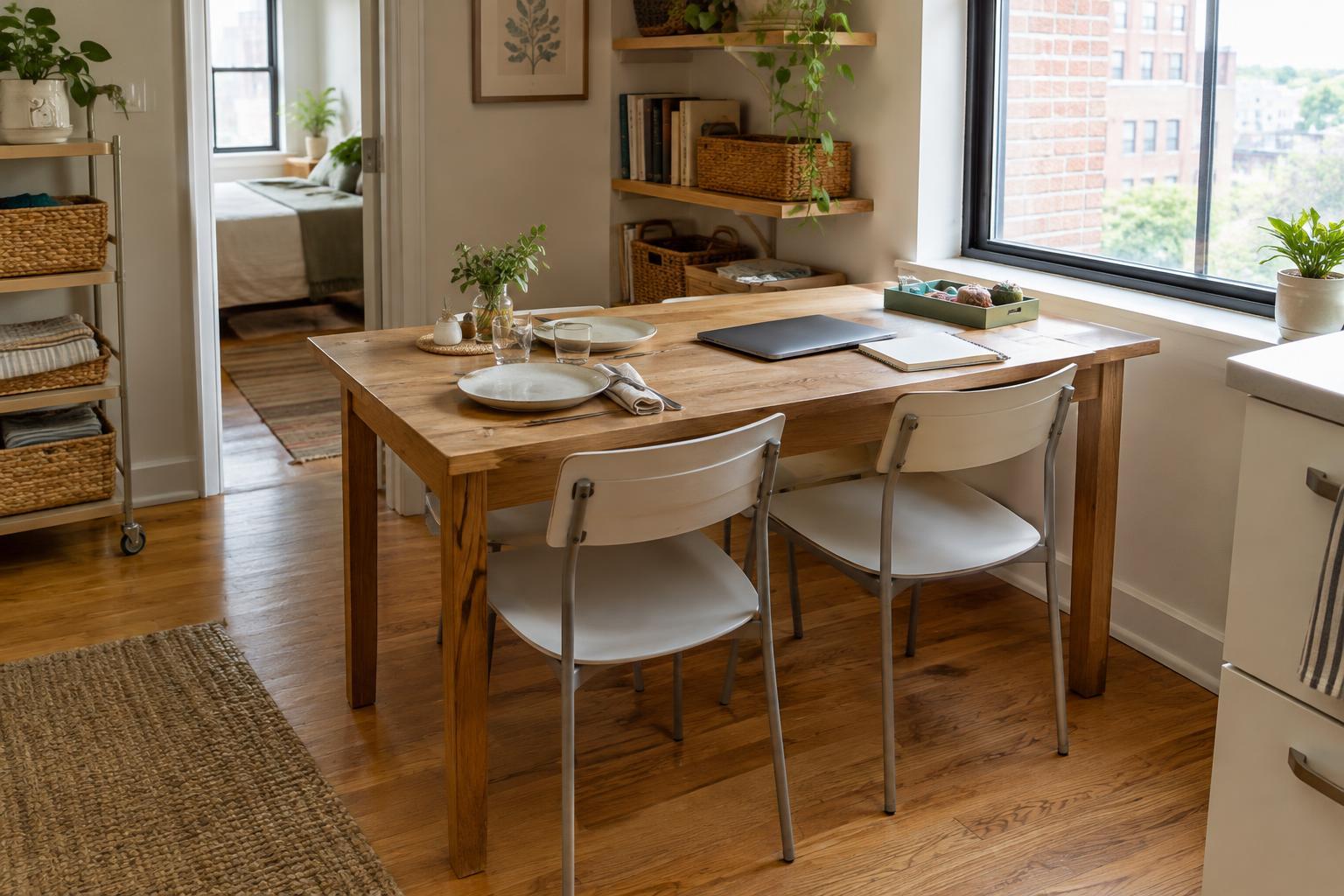
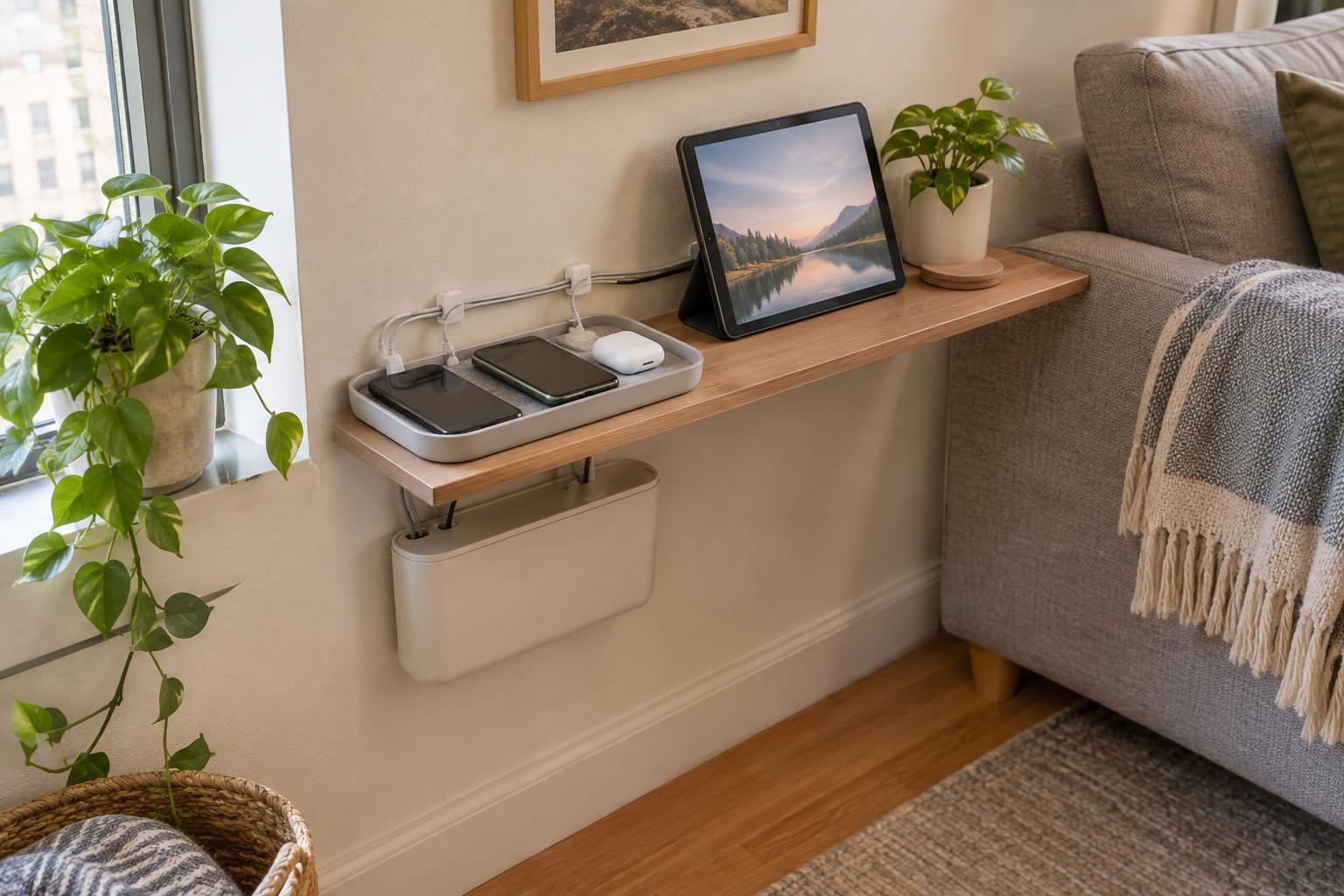
A workspace in a bedroom, dining area or living room may need to disappear at the end of the day. Give the separate keyboard, mouse and cables a consistent place to go, such as a shallow drawer or labeled box. A cable clip at the desk edge can keep a charging lead accessible without leaving it across the work surface.
Before spending money on a new desk, try a one-week layout test with what you already own. Center the main screen, support the laptop safely, clear space for the keyboard and note what still feels cramped. That short trial can show whether you need a stand, a smaller keyboard or simply a different place for everyday clutter.