Start with the chair, not the screen
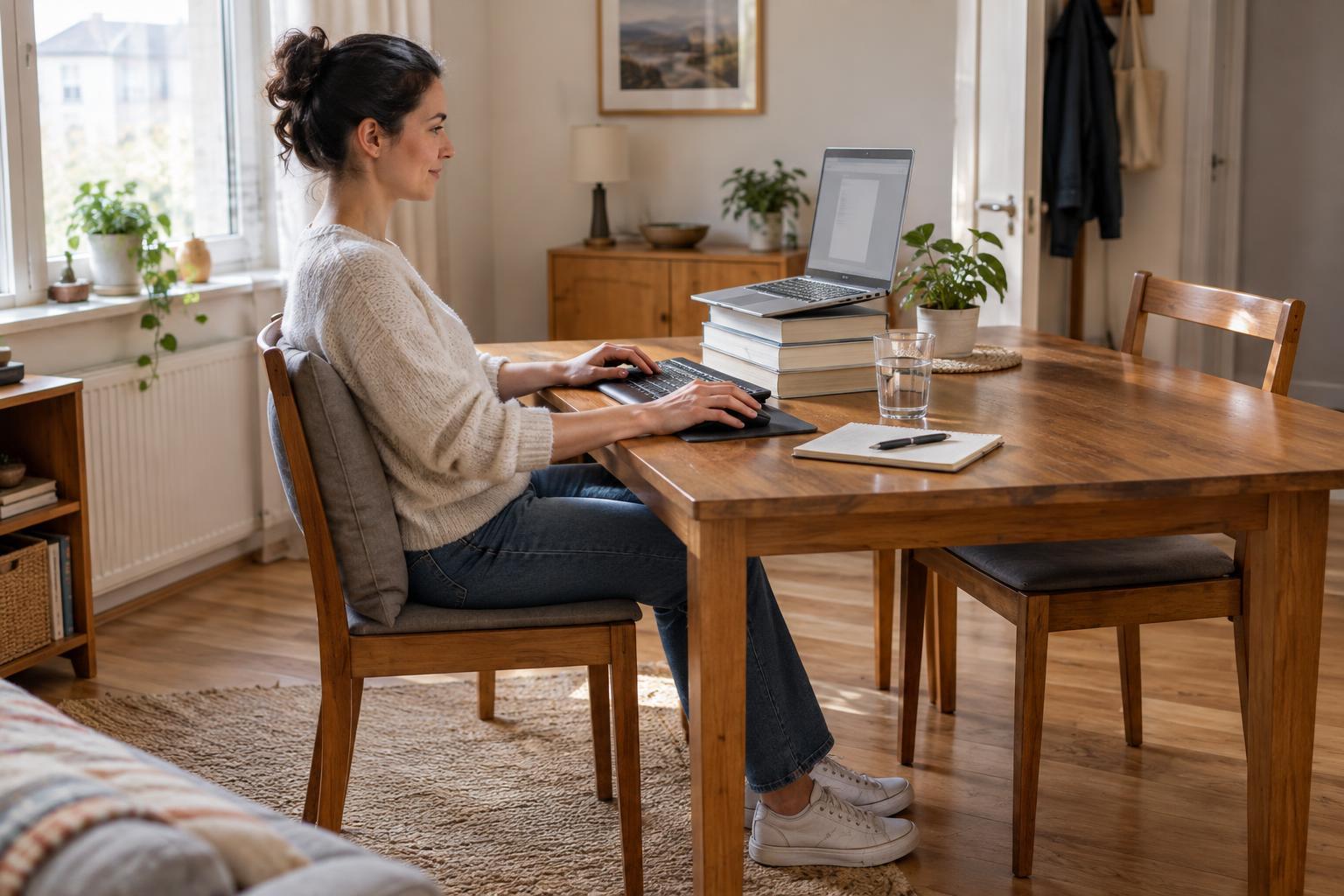
When a temporary workstation feels awkward, it is tempting to start by moving the laptop. First, check how you sit. At a dining table, a chair may be too low for comfortable typing or too high for your feet to rest easily. Sit back with your feet supported and notice whether you have to lift your shoulders to reach the keyboard or lean forward to see the screen.
If your feet dangle, try a stable footrest or a sturdy box that will not slide away. A firm cushion can raise your seat, but check the result: raising yourself may leave your feet unsupported. A small cushion behind your lower back may make a hard chair more comfortable. These are adjustments to test, not rules that require you to hold one perfect posture all day.
Avoid balancing on a soft sofa with a laptop in your lap for long stretches if it makes you curl forward. For short tasks it may be convenient; for focused work, a firm surface usually gives you more options for arranging the screen and keyboard.
Separate screen height from typing height
A laptop creates a common trade-off. With the keyboard at a comfortable height, the screen may sit low enough that you repeatedly bend your neck to read it. Raising the whole laptop can improve the view, but then typing may require you to hold your arms up. Changing one part of the setup without checking the other can simply move the discomfort.
If you have an external keyboard and mouse, place the laptop on a stable stand or a firm stack of books, then keep the keyboard and mouse on the table. Adjust the display until you can read it without noticeably craning forward or tipping your head back. If you only have the laptop, choose a position that lets you type comfortably and take frequent chances to look away and change position rather than propping it at an awkward height.
Keep the screen at a distance where text is easy to read. Enlarging text can be more useful than leaning toward a small display. Make changes one at a time so you can tell what actually helps.
Keep everyday tools within easy reach
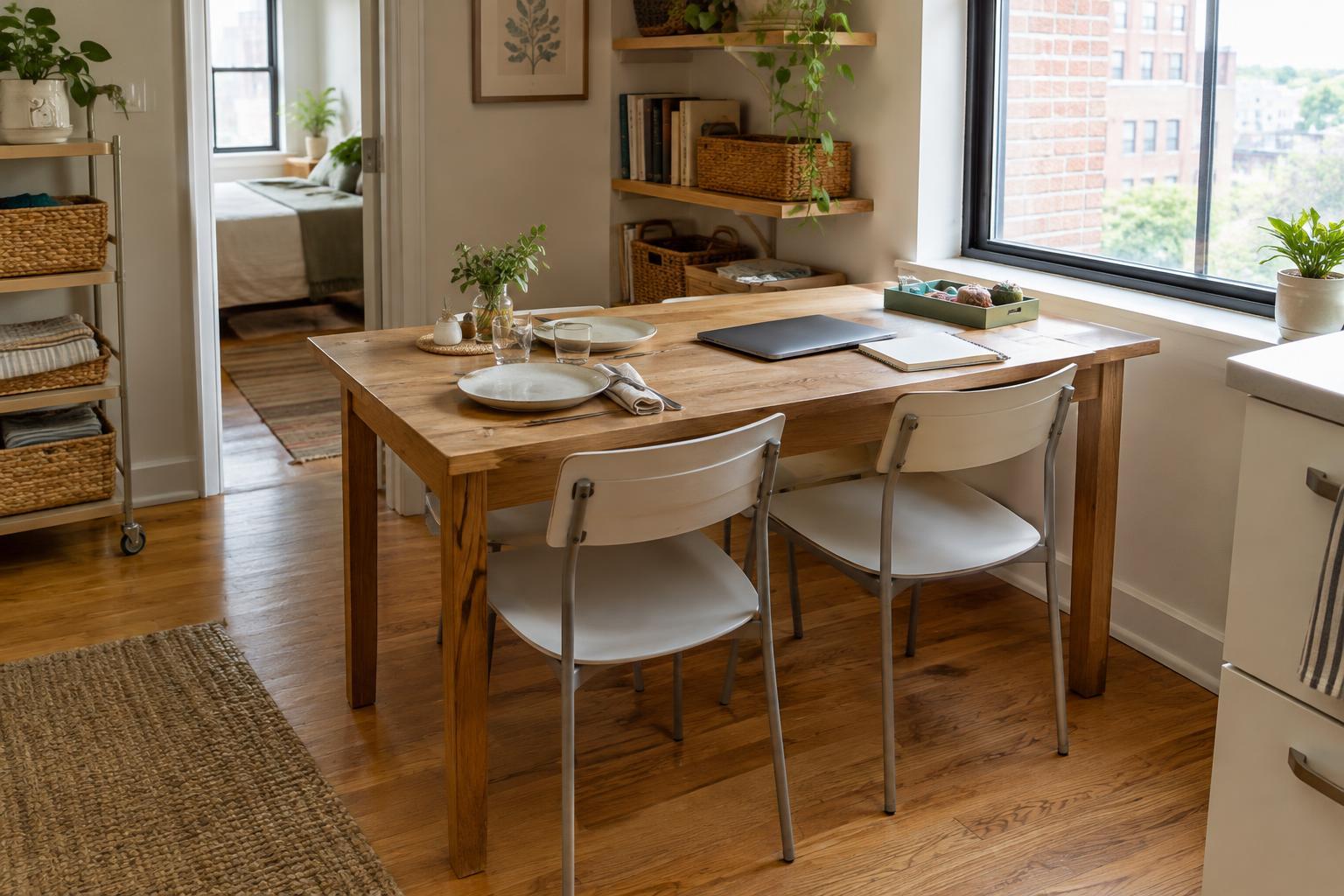
A temporary desk often shares space with meals, paperwork or household supplies. That can push the mouse, notebook or phone farther away than you realize. If you repeatedly stretch across the table or twist to use an item, clear a small working zone before you begin. Put the keyboard and mouse close enough that your arms can rest comfortably near your sides, and keep the things you use most in that same zone.
Pay attention to where the mouse goes when the table is crowded. Squeezing it into a narrow strip can make you hold your arm in an awkward position or use your wrist for every movement. Shifting a mug or pile of papers may solve more than buying an accessory. If you work from paper notes, place them beside the screen where you can glance at them without turning sharply each time.
A five-minute reset at the end of the day helps preserve a multipurpose room. Store the keyboard, mouse and any stand together in a basket or drawer so the setup is quick to rebuild.
Check light, glare and video-call habits
A workable screen position at one time of day may become difficult when sunlight moves across the room. Glare can prompt you to lean in, squint or tilt the laptop into an uncomfortable position. Before changing your posture to suit the light, try turning the screen slightly, moving the workstation or using a curtain. A small lamp can help with paper notes, provided it does not shine into your eyes or reflect off the display.
Video calls can introduce another mistake: leaning toward the camera for an entire meeting. Set the laptop where you can be seen without perching at the edge of your chair. If you take notes during calls, make room for them before the meeting starts rather than twisting around to find a clear patch of table. You do not need a picture-perfect background if achieving one makes the workstation harder to use.
Build movement into a setup that changes daily
Even a carefully arranged workstation can feel uncomfortable when you stay in the same position for too long. Use natural breaks to stand, walk to refill a glass of water or switch tasks. During longer reading or listening periods, you may be able to change position without disrupting the work. The aim is to avoid staying fixed in one pose, not to follow a rigid schedule.
Because a temporary station is packed away and rebuilt, give yourself a brief setup check each time: Are your feet supported? Can you see the screen clearly? Are the keyboard, mouse and notes easy to reach? Is the light comfortable? Those questions are more useful than trying to copy a fixed desk arrangement into a room that serves several purposes.
If an adjustment makes you feel worse, undo it and try another approach. Persistent pain or other concerning symptoms deserve advice from a qualified health professional; a home setup checklist is no substitute for individual guidance.